The Gift Card for WooCommerce simplifies the creation and sale of gift cards, offering merchants versatile options such as dropdown values, fixed amounts, and ranges. The extension provides full back-end control, allowing for easy management of gift cards. Notable features include the ability to import gift cards via CSV files, exclude specific products/categories from gift card discounts, and enable customers to use gift cards for various purposes, including buying additional gift cards. The extension supports diverse customization options, including unlimited email templates, multiple PDF templates with a drag-and-drop design interface, and QR code generation. Customers benefit from a user-friendly experience with options to choose gift card values, email templates, and schedule deliveries, while recipients can use the gift card multiple times and check balances conveniently through their My Account. page.
- Create and sell Gift Cards product online.
- Set Gift Card price as a drop down (add multiple values), fixed amount or a range (min and max).
- Import Gift Cards using CSV file.
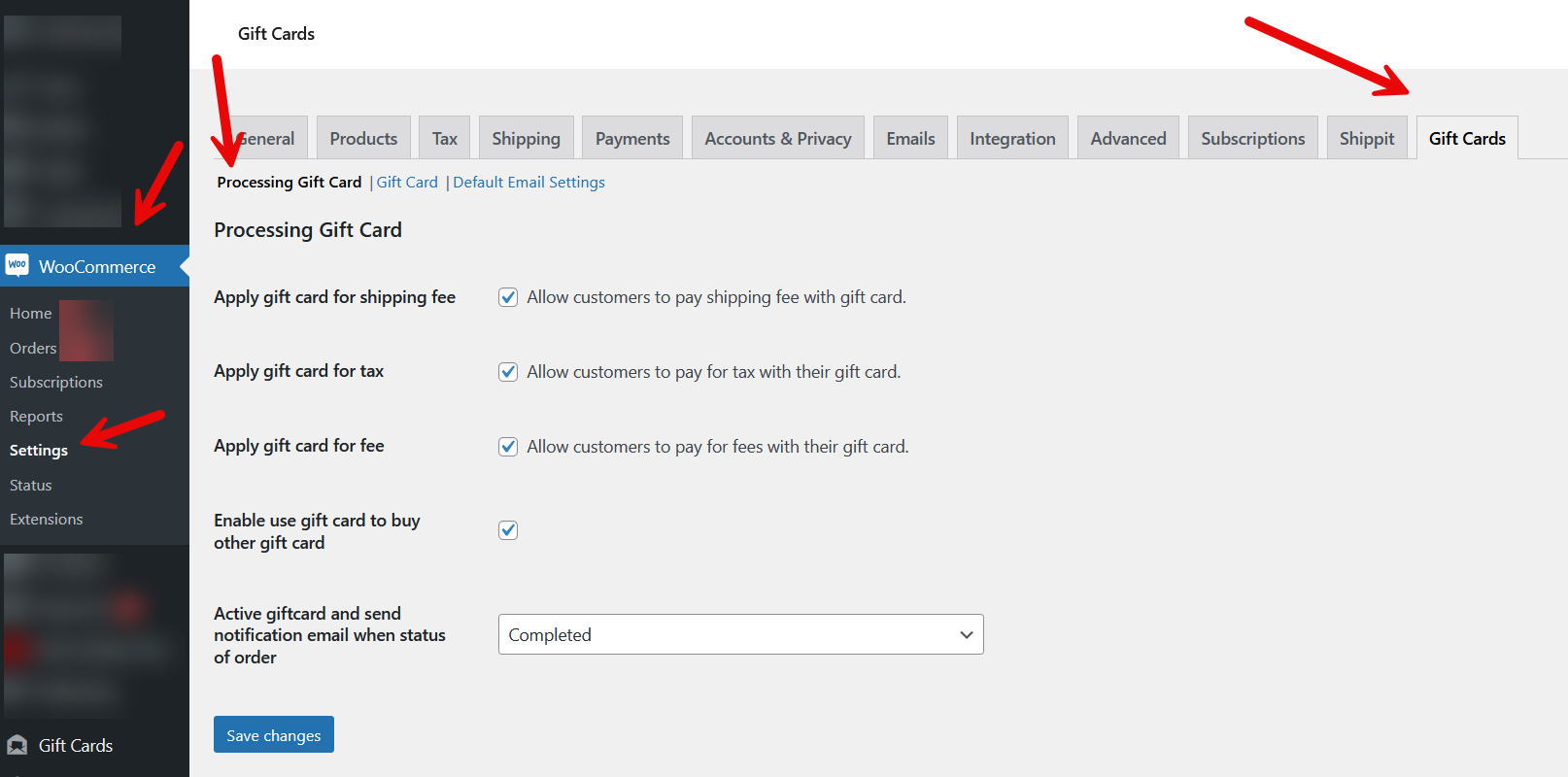
- Options to apply Gift Cards for shipping fee, tax, and WooCommerce fee
- Create and assign unlimited email templates for the Gift Card products and allow customers to select email templates for specific purposes while adding to cart.
- Exclude Products/Categories from Gift Card discount. The gift card cannot be applied for the excluded products/categories.
- Create unlimited PDF templates by drag-and-drop method to send them to the recipients on email with the Gift Cards.
- Tracking of the Gift Card usage for both admin and customers. Gift Card can be use multiple times as long as the balance is not 0.
- Customers can schedule to send gift cards.
How To Install
- Download the .zip file from your codecanyon account.
- Go to: WordPress Admin > Plugins > Add New and Upload Plugin with the file you downloaded with the Choose File button.
- Install Now and Activate the plugin.
Frontend
On the customer-facing interface, the Gift Card product will be displayed, accompanied by additional details that the customer (the Gift Card sender) is required to fill out before proceeding to add the product to the cart.
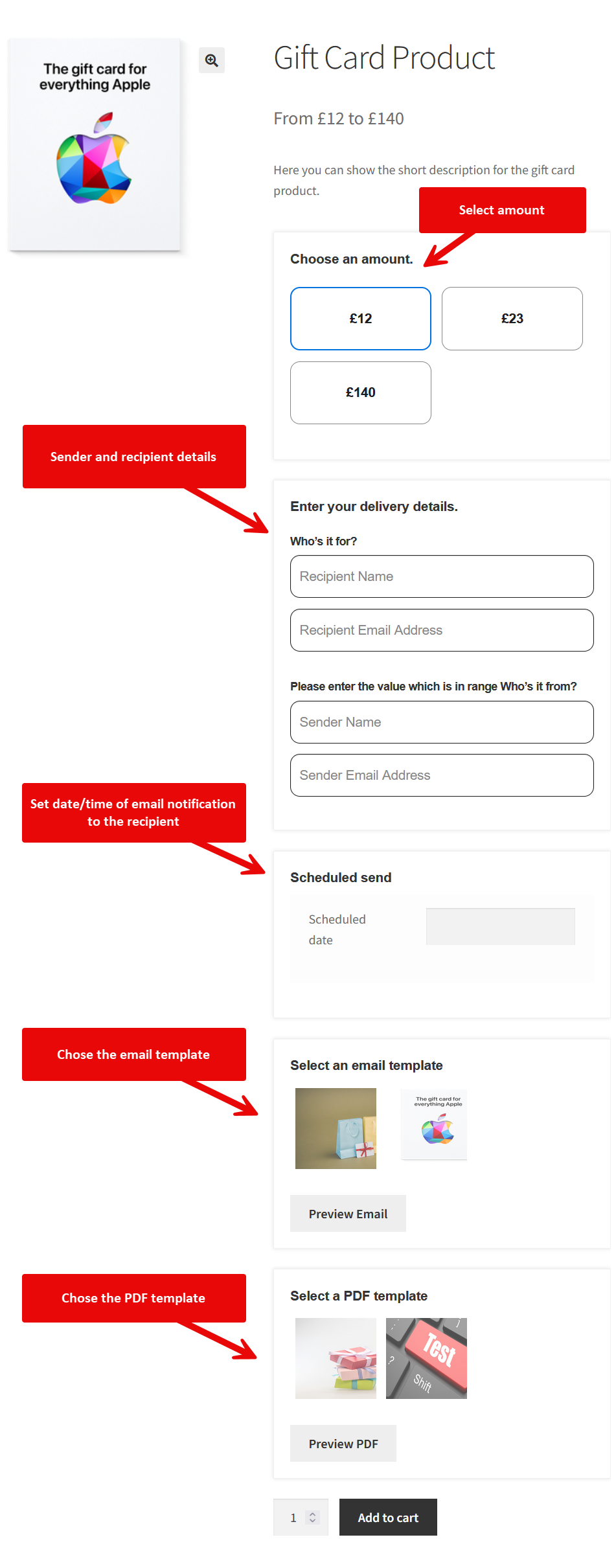
Upon making the desired selections, the customer can add the product to the cart and proceed through the checkout process, following the standard procedure applied to any typical WooCommerce product checkout.
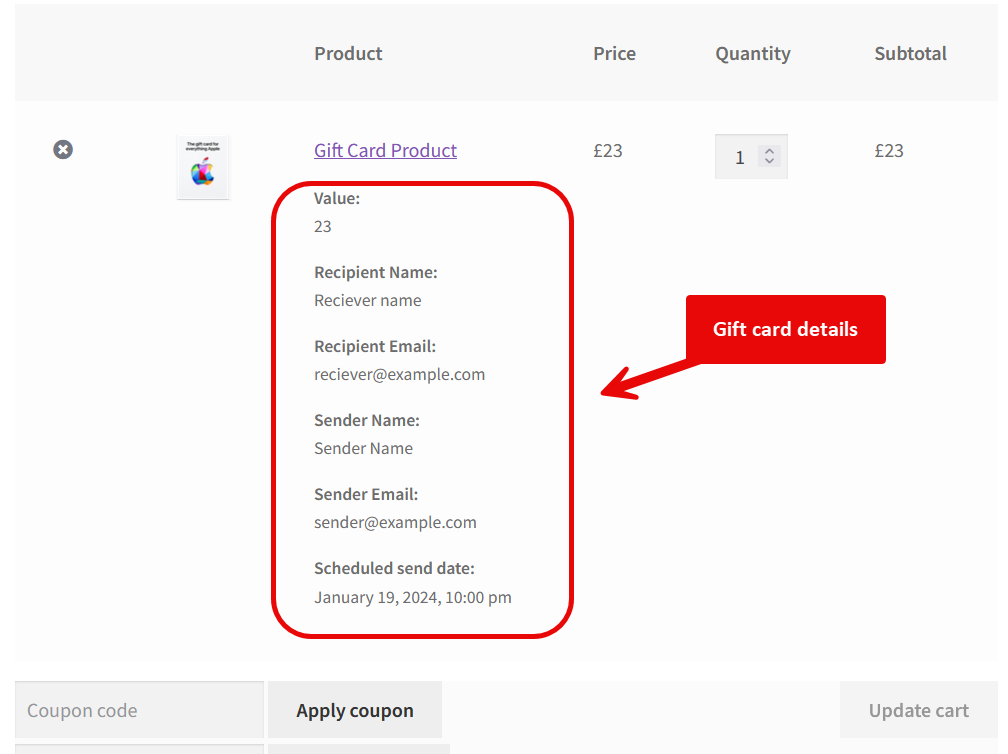
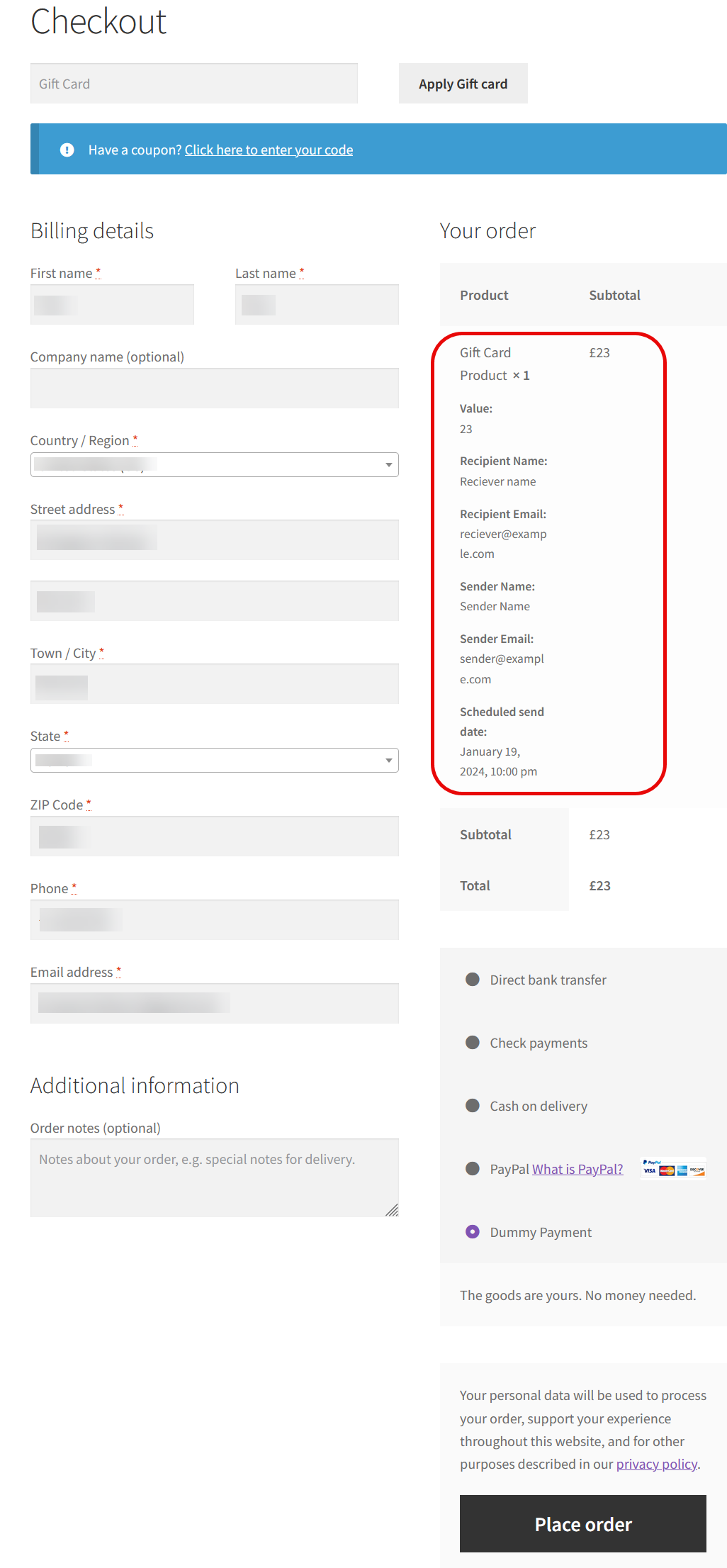
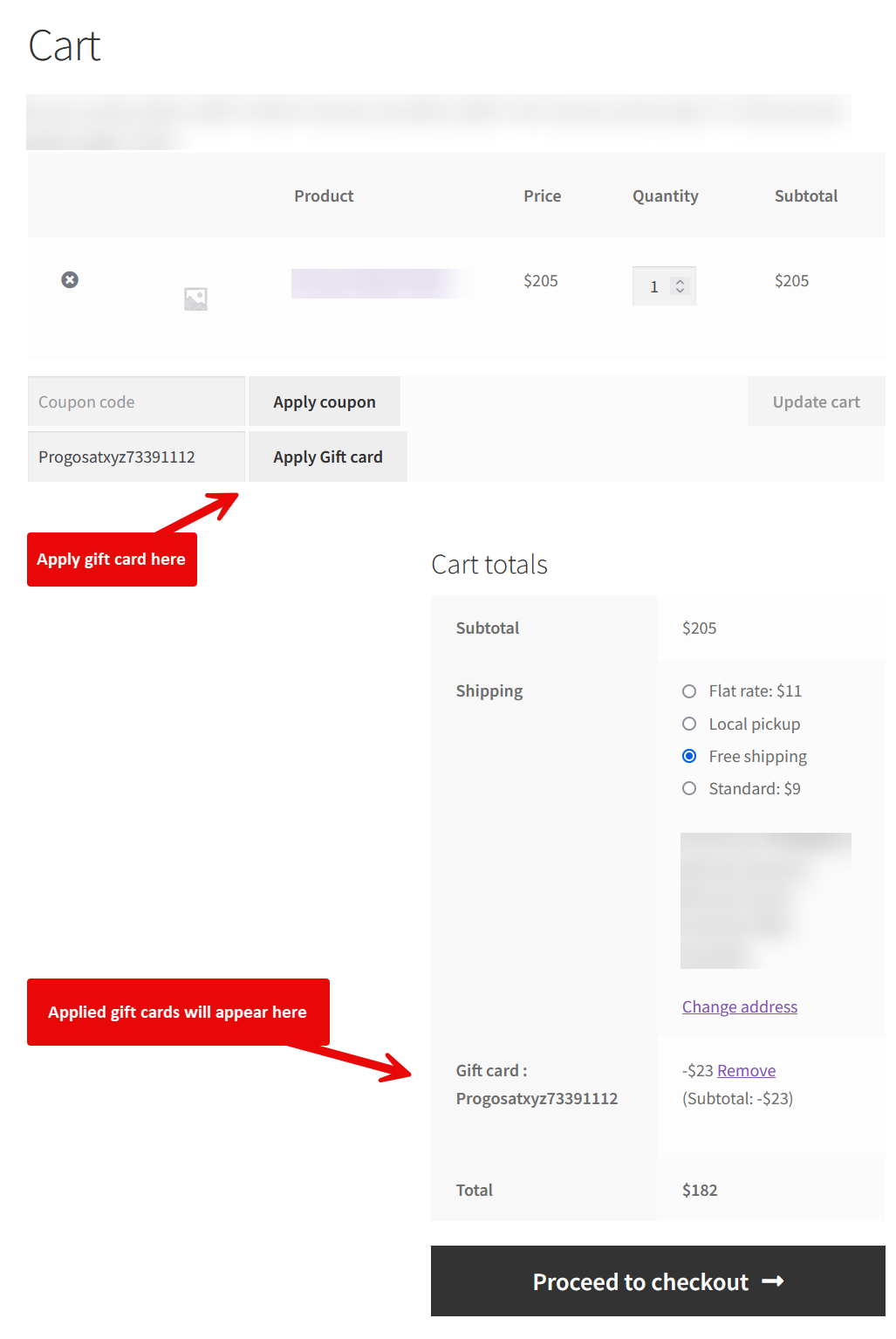
The reciever will get an email with the specified template and PDF attached according to the specified date and time and then, the gift card can be used both on cart and checkout pages.
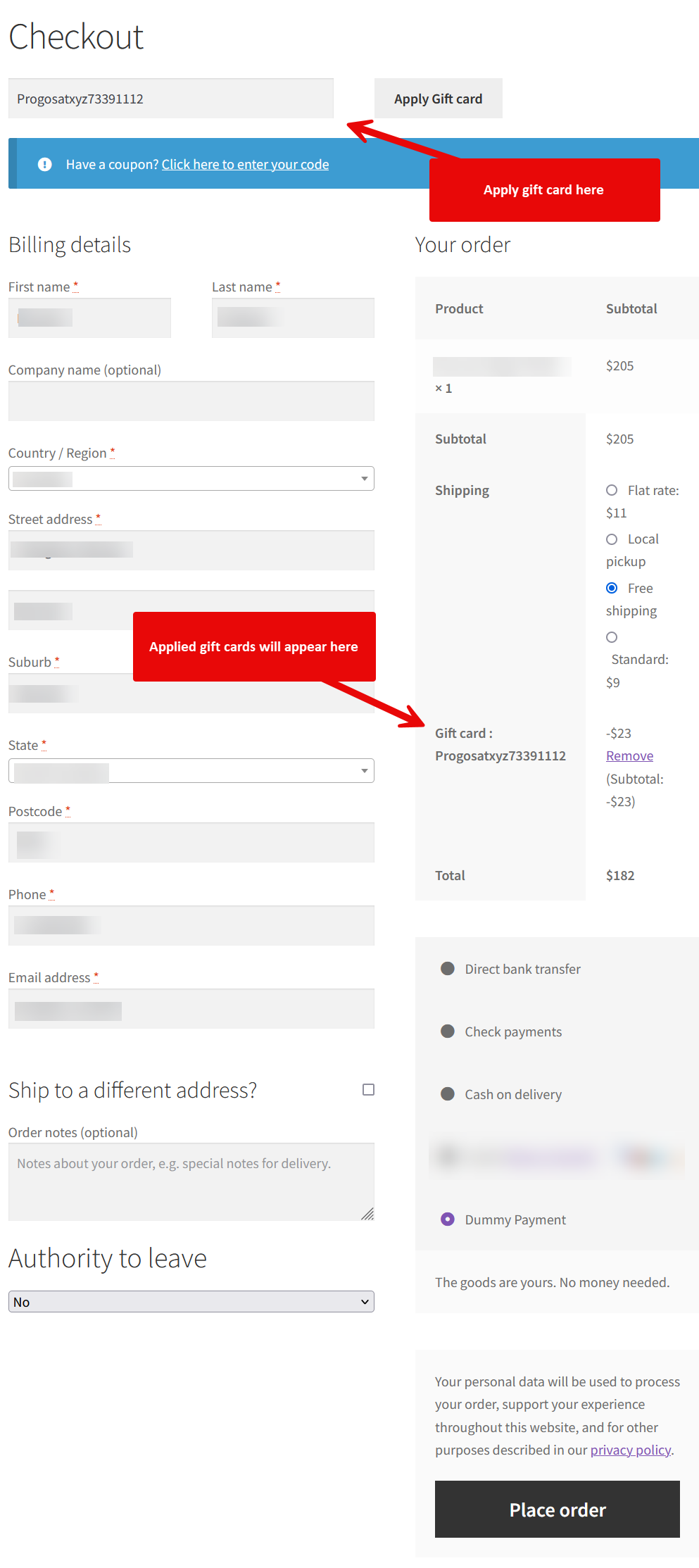
Backend Settings
When you install the Gift Card for WooCommerce plugin, a new menu named “Gift Cards” will appear inside the admin panel. This menu will have six sub-menus named “Import Gift Cards”, “Email templates”, and “PDF templates”. Lets explore each of these one by one.
Gift Cards
This page will show all of the gift cards created either automaically or imported manually.
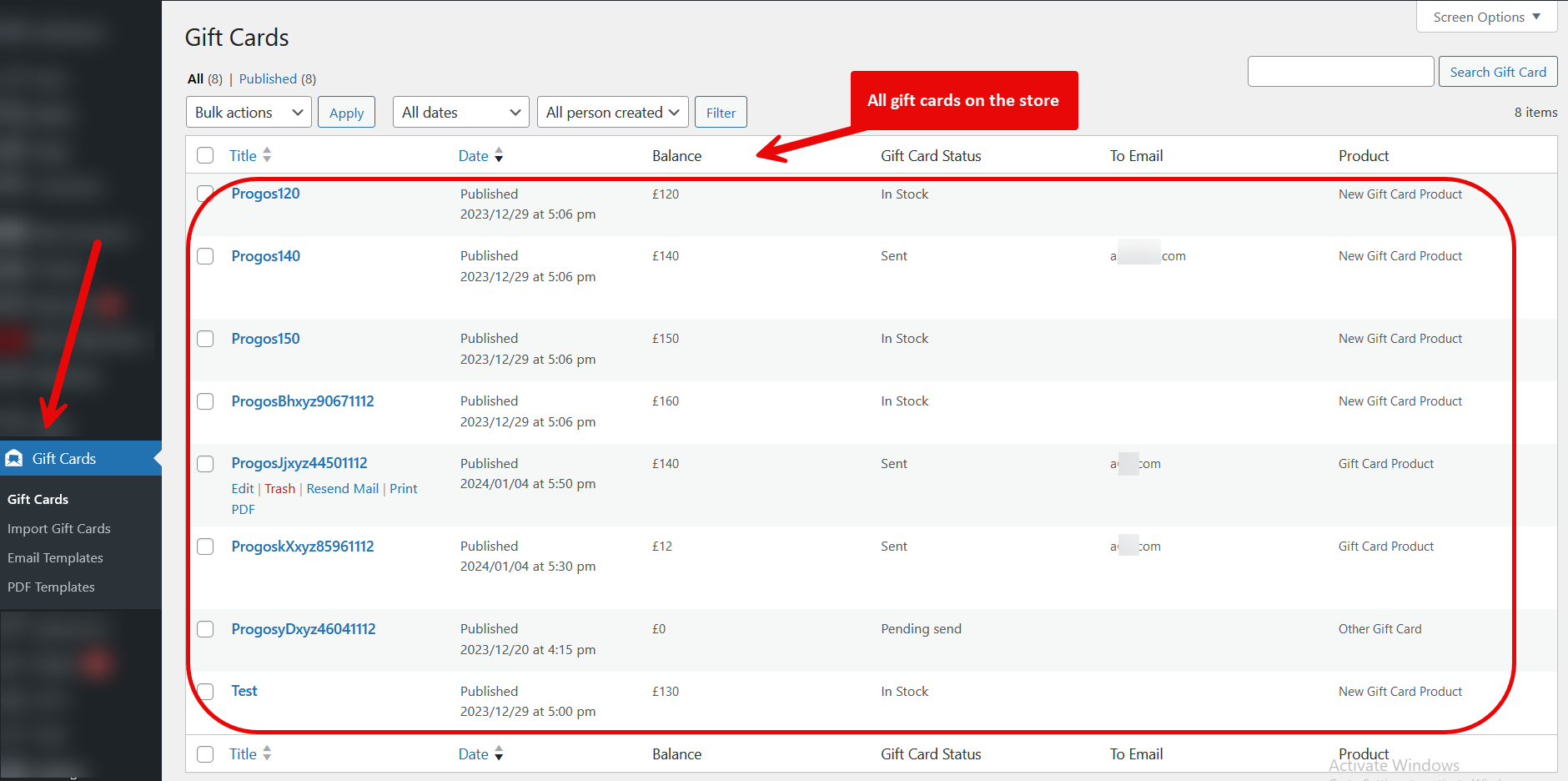
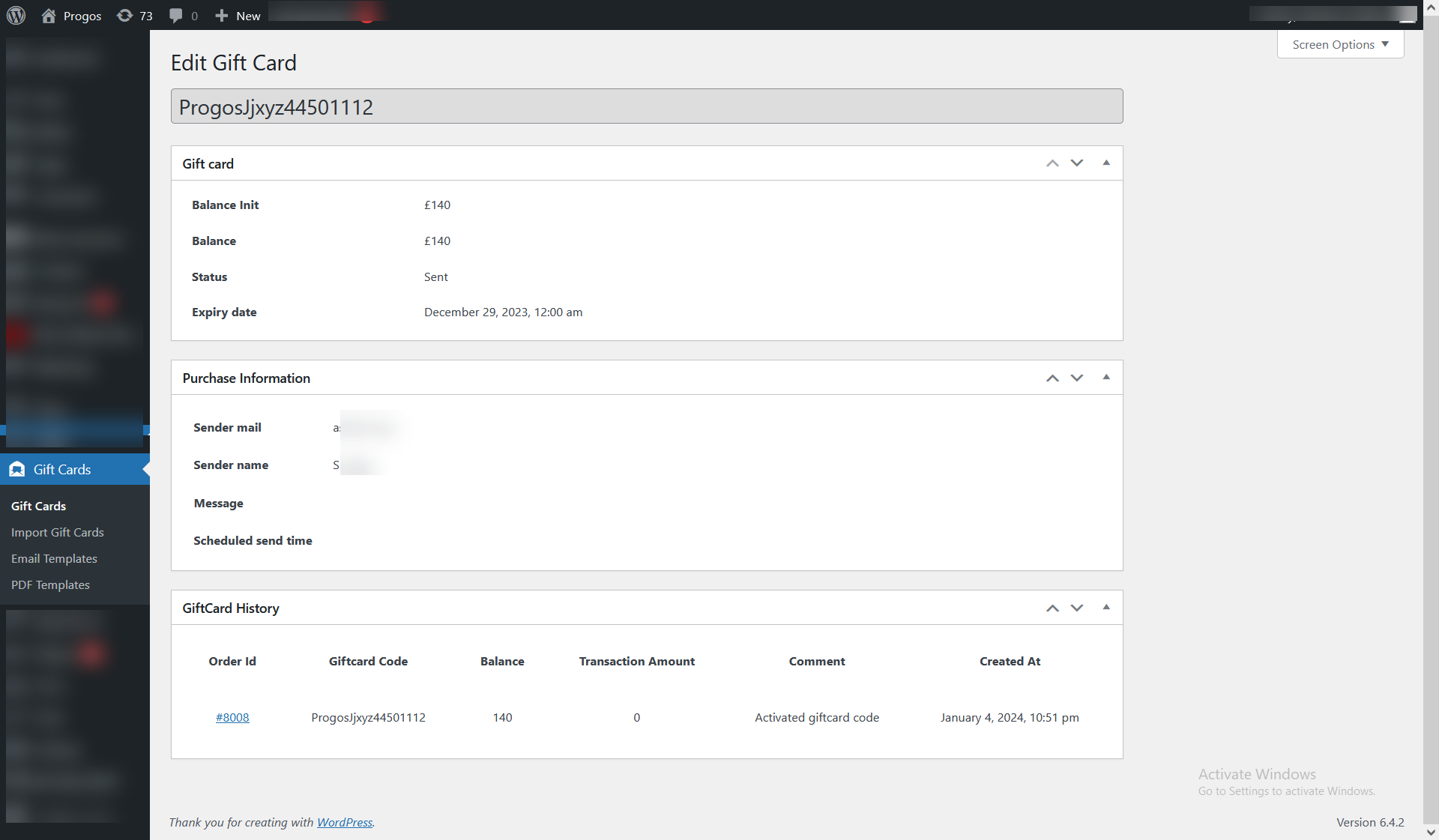
You can view details of each gift card by clicking on the specific gift card.
Import Gift Cards
You can import gift cards by using a CSV file from this page. Go to the Gift Cards > Import Gift Cards page.
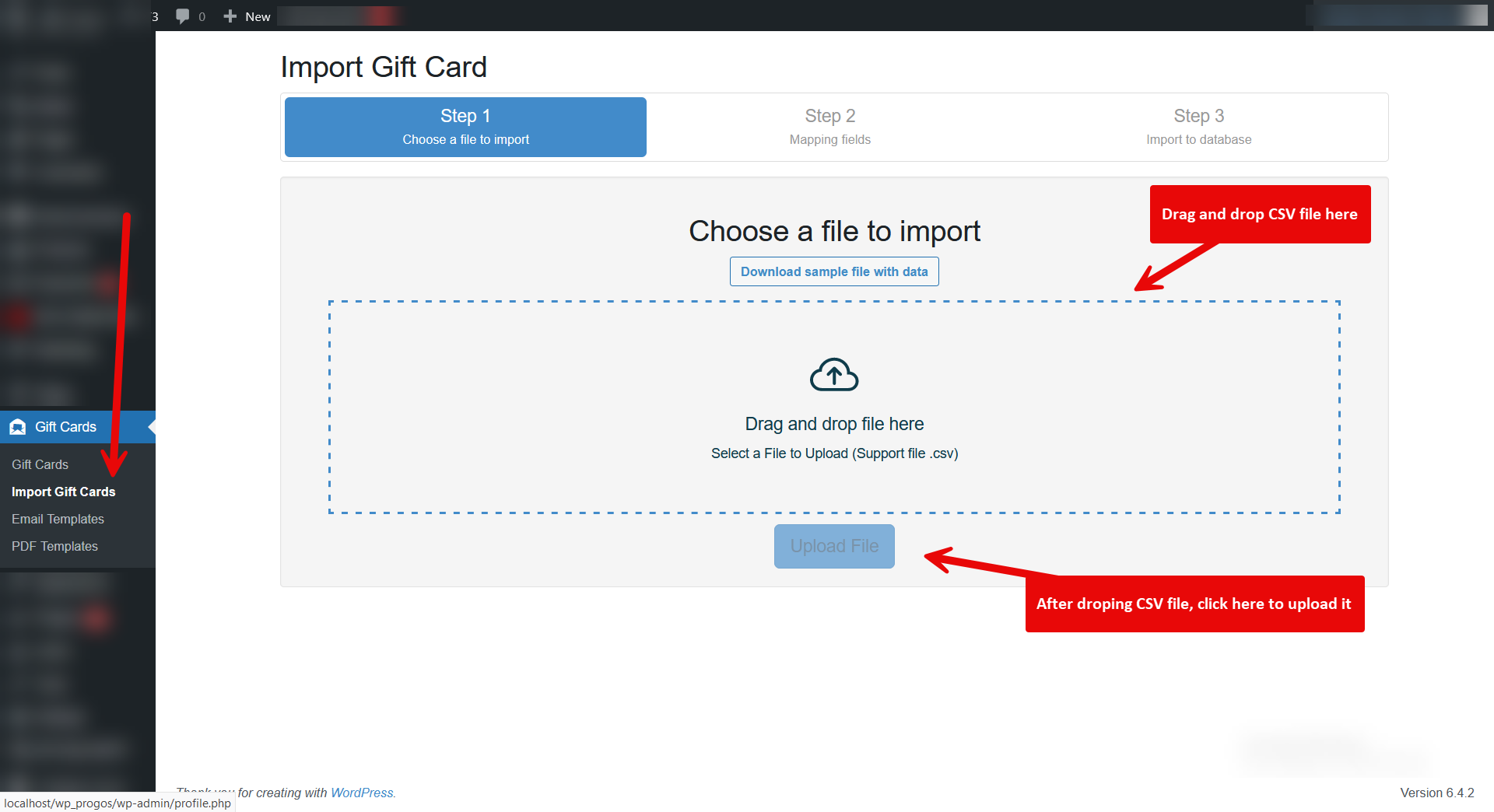
Drag and drop the CSV file which you want to import. You can also download a sample file for understanding the columns.
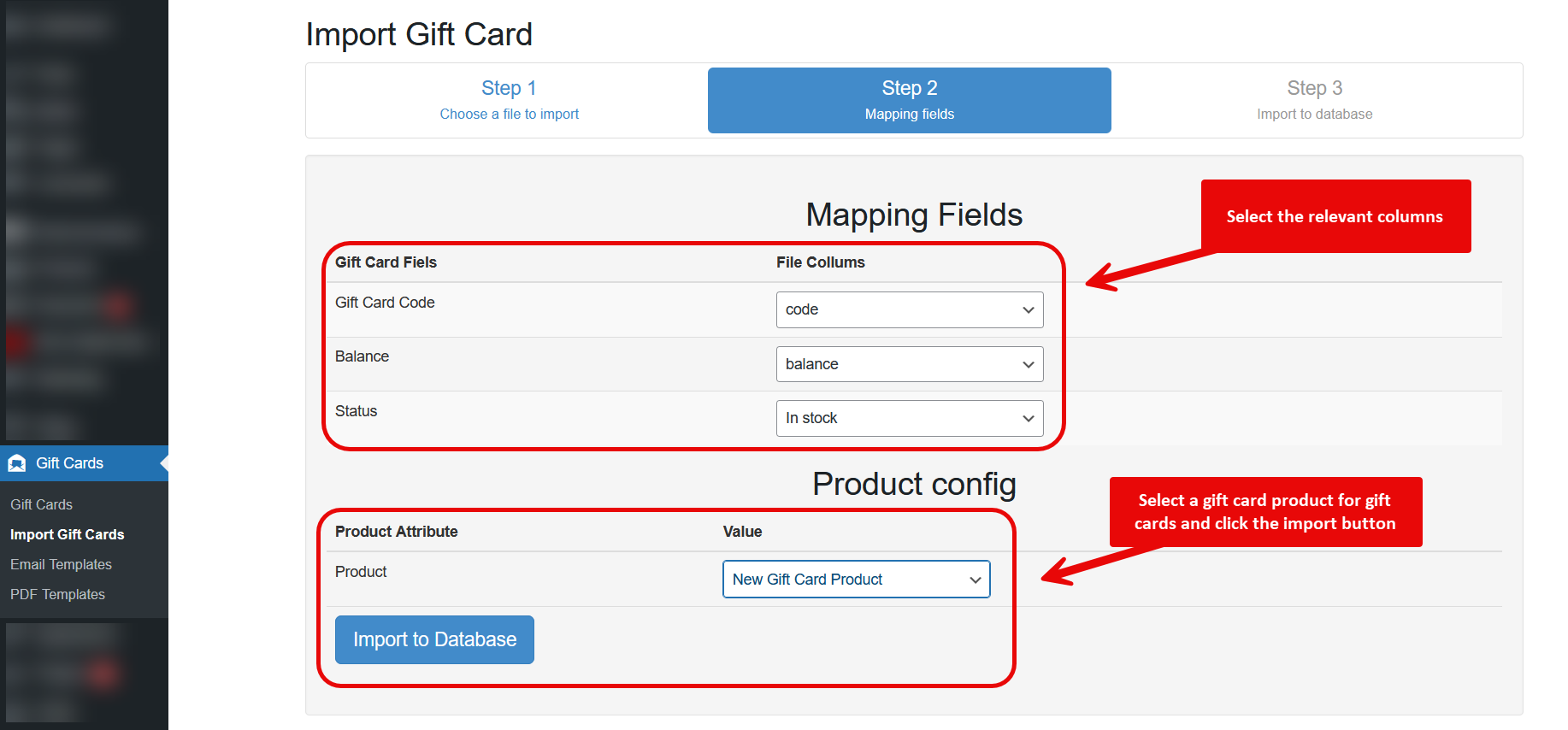
Select the relevant CSV columns for the gift card fields and select a gift card for the new gift cards. Click on the Import to Database button and the gift card import will start.
Email Templates
You can create email templates as many as required. The email templates can be selected while creating a gift card product. The selected email templates will be available to the customers and they can choose the desired email while adding the gift card to the cart. The choosen email template will be used to send the gift card notification email to the reciever.
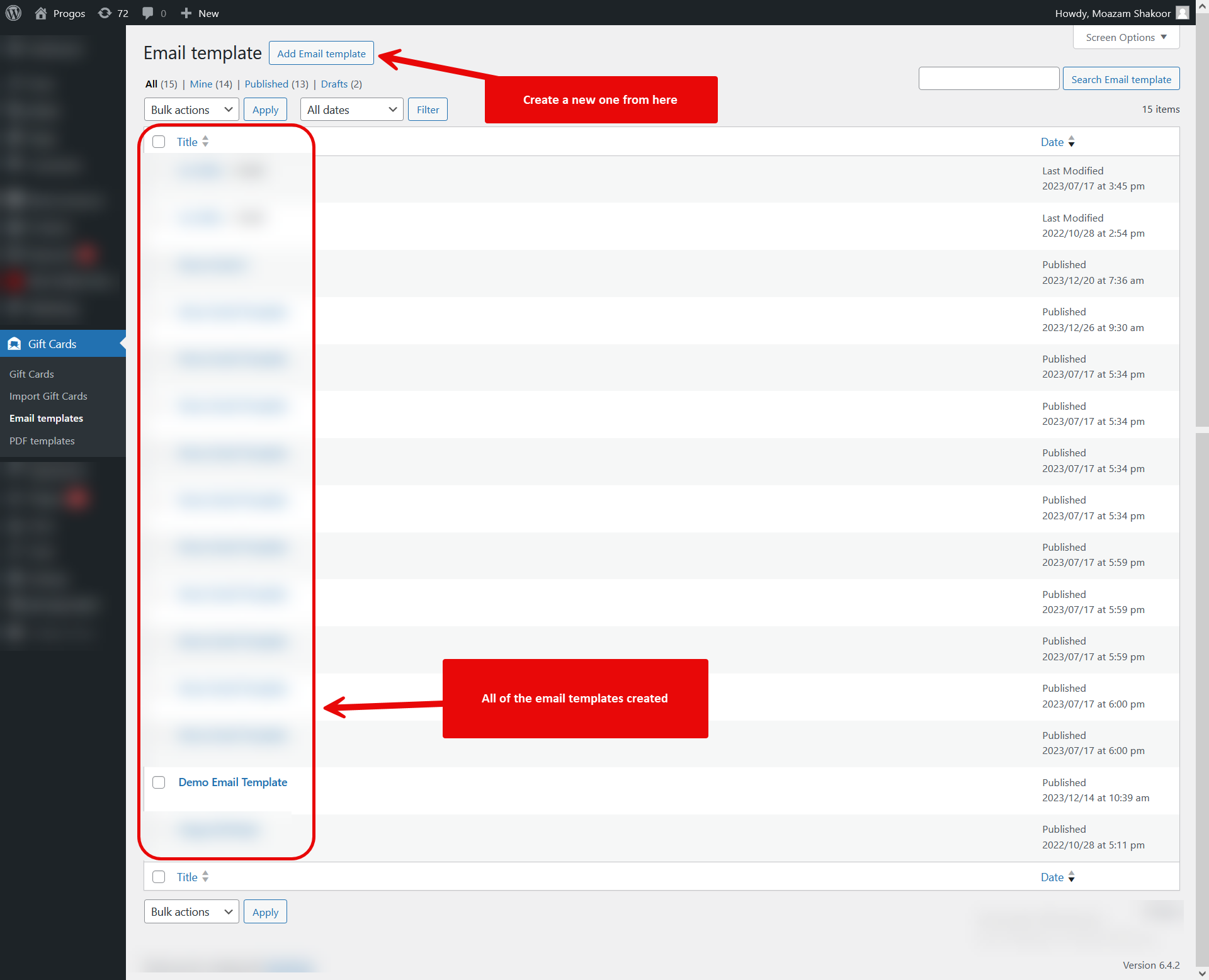
To create a new email template, click on the Add Email template.
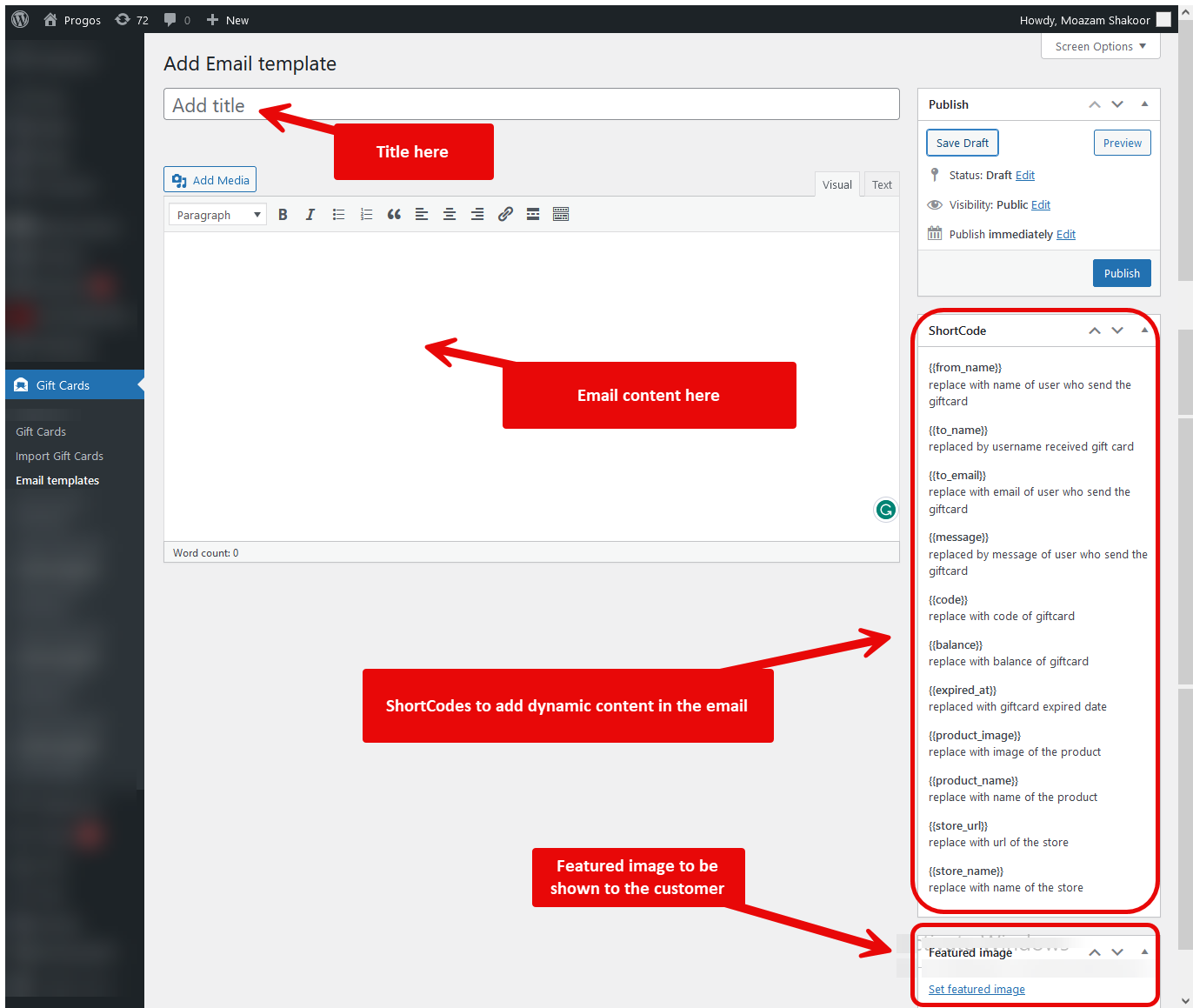
You can add the content for the email same as adding the content to a WordPress post. You can use the shortcodes to add dynamic content for example gift card code, balance and so on. Once the template is ready, click on the Publish button.
PDF Templates
You can create PDF templates as many as required. The PDF templates can be selected while creating a gift card product. The selected PDF templates will be available to the customers and they can choose the desired PDF while adding the gift card to the cart. The choosen PDF will be attached to the gift card notification email to the reciever.
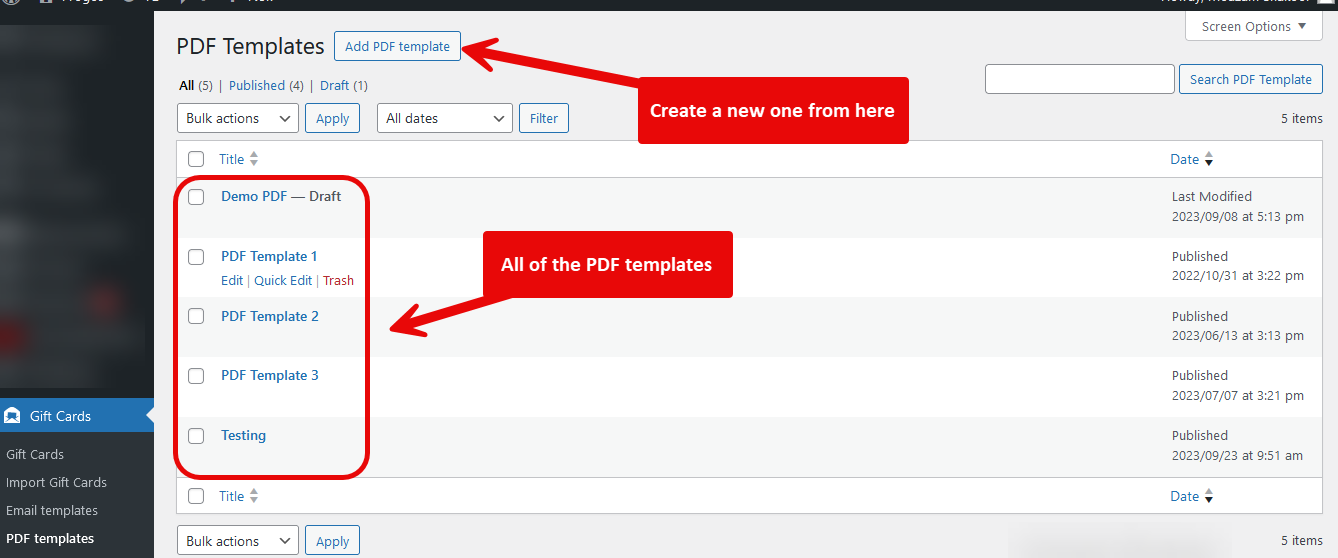
To create a new PDF template, click on the Add PDF template.
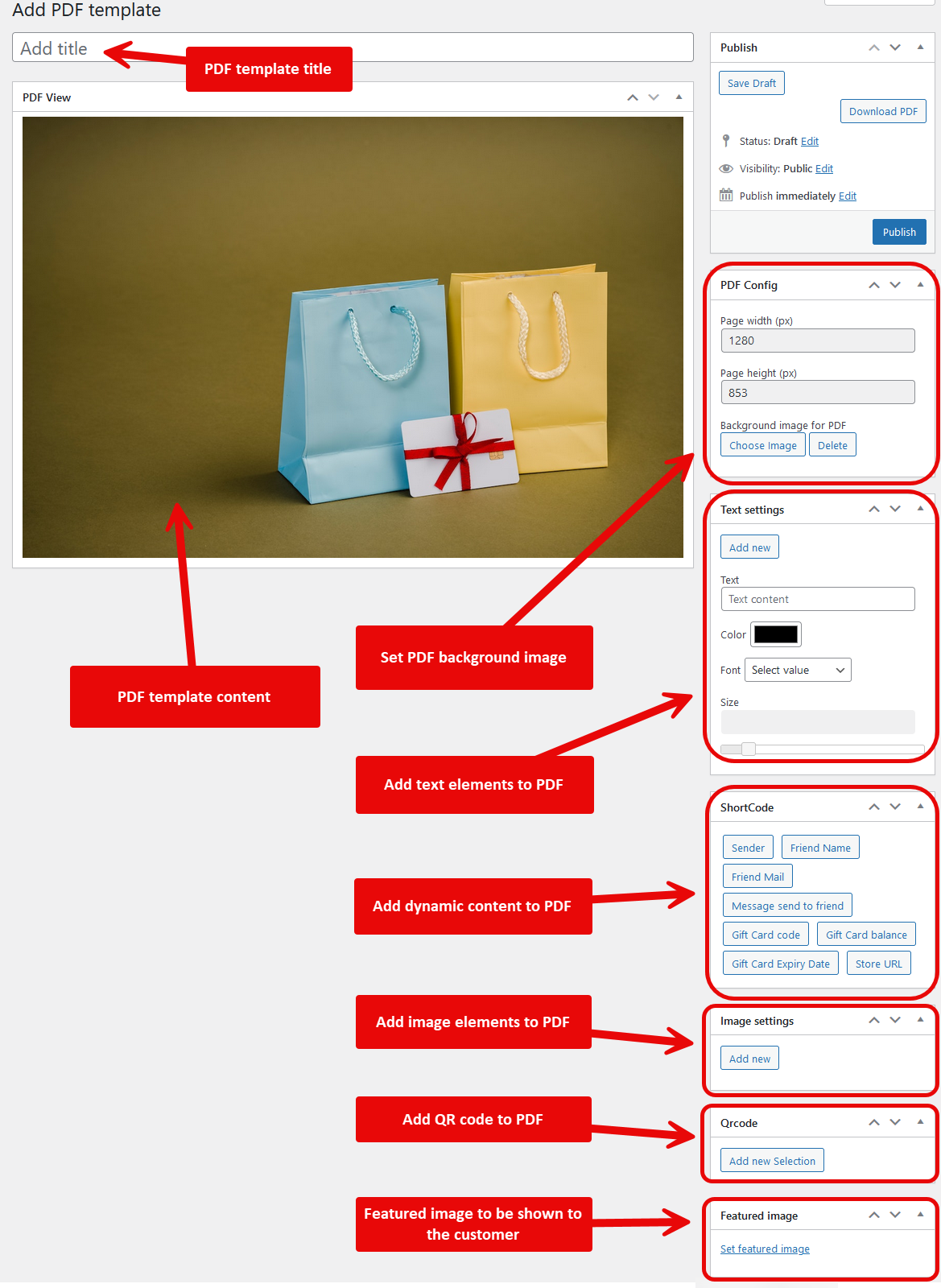
You can use the shortcodes to add dynamic content for example gift card code, balance and so on. Once the template is ready, click on the Publish button.
Creating Gift Card Products
Gift Cards does not introduce a dedicated product type.
To create a Simple gift card:
- Go to Products > Add New.
- Choose the Simple product type.
- Enable the Gift Card option.
- In the General tab, enter the price of your gift card.
- Enter a Title and Description.
- Choose a Product Image.
- Save your gift card.
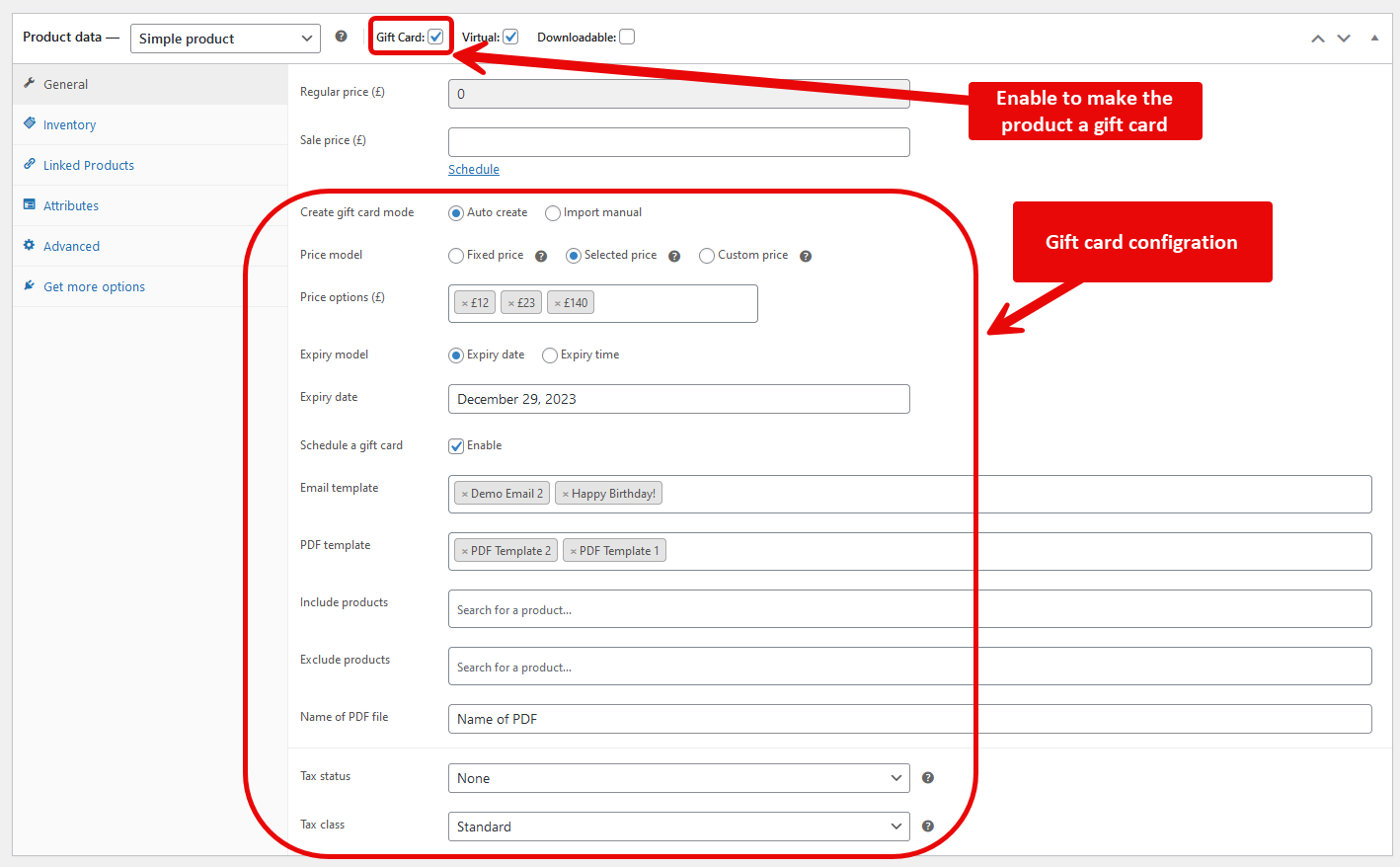
- Create gift card mode: Auto mode will generate gift card after the order is placed. Manual mode use a CSV imported gift card instead.
- Price model: Fixed price will use the Regular price input field. Selected price will allow you to add multiple prices. Custom price will allow you to set a min/max range so that user can purchase a dynamic price gift card.
- Expiry model: Set the gift card expiration either by a date or time.
- Schedule a gift card: If enabled, the customer can select a date/time for the email notification to be sent to the reciever.
- Email template: Select the email template(s) that will be available for the customers while purchasing the gift card.
- Pdf template: Select the PDF template(s) that will be available for the customers while purchasing the gift card.
- Include products: Select the product(s) for which the gift card can be redeemed.
- Exclude products: Select the product(s) for which the gift card can not be redeemed.
- Name of PDF file: Enter a name of PDF attachement to be sent the reciever.
Gift Card Settings
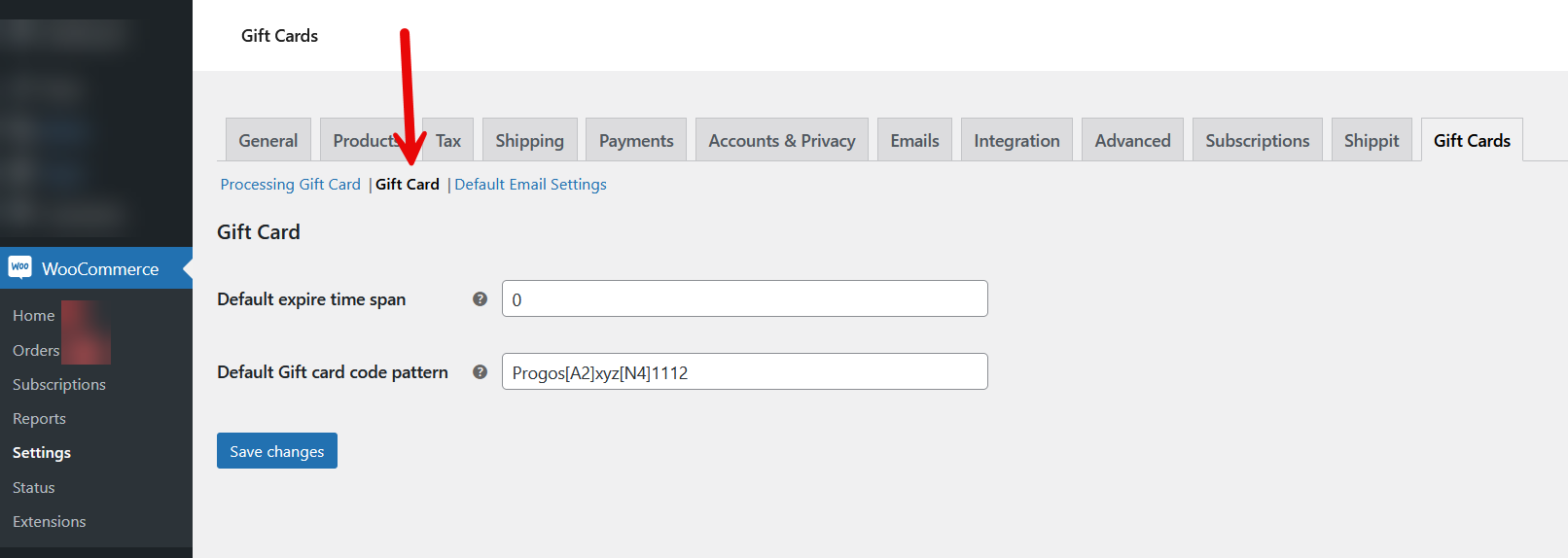
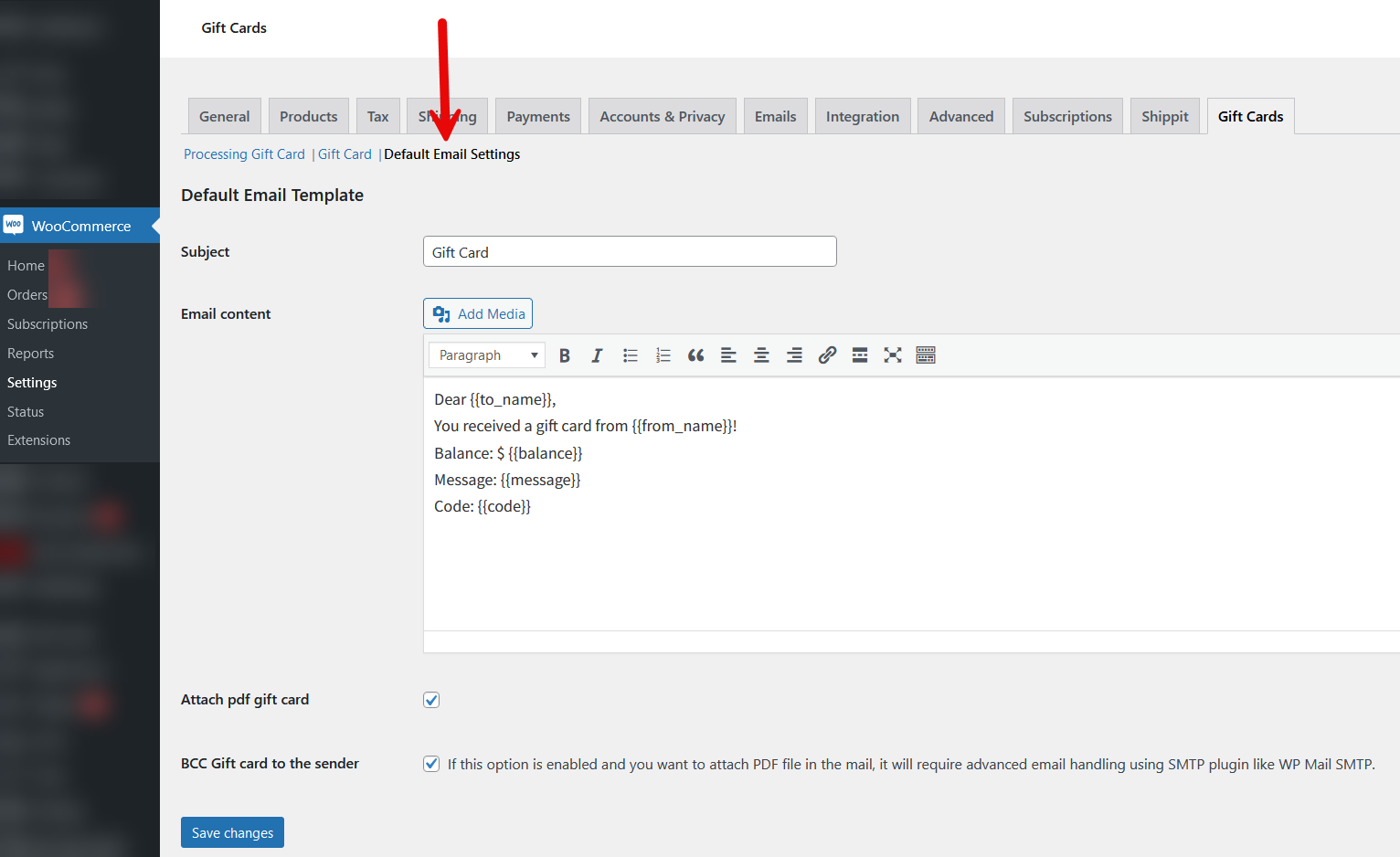
A new Gift Cards tab will appear under WooCommerce > Settings. There are tons of options available on the gift card settings page. Configure the plugin according to your needs. See the below screenshots for all of the available options:
Request a Feature
Please contact our support team to request another feature or any customization.Changelog
Version 1.0.0
* Initial Release.